Host Guide: How to List Your Shortlet Apartment on BookaStay Naija
A step-by-step guide to getting your property live and ready to receive bookings.
Table of Contents
1. Create Your Account
Section 1 – Go to the Become a Host page
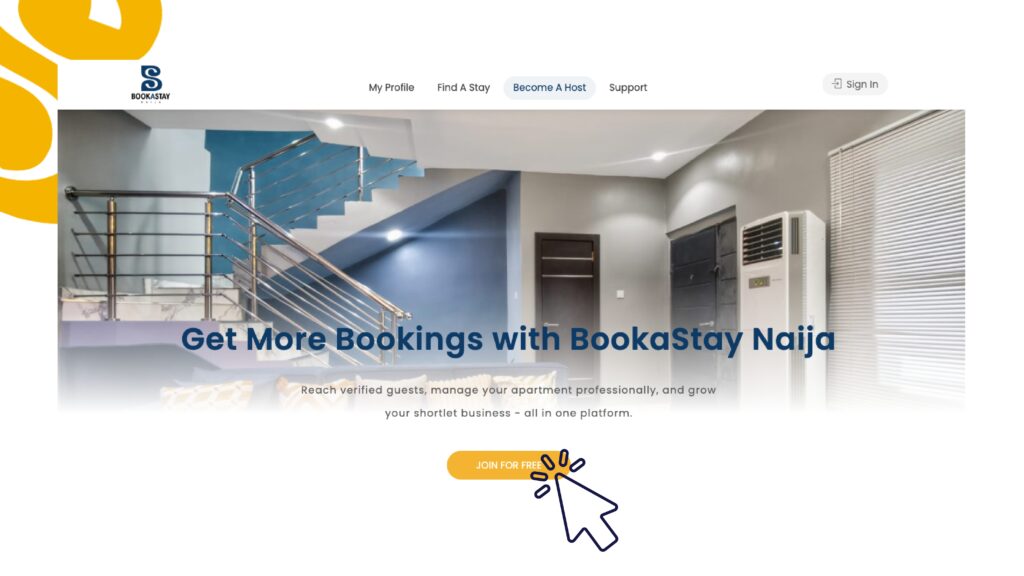
Visit Become A Host and click the “Join For Free” button to get started.
Section 2 – Register as a Host
You’ll be taken to the registration page. Make sure you select Host (not Guest) at the top of the form. Fill in your details:
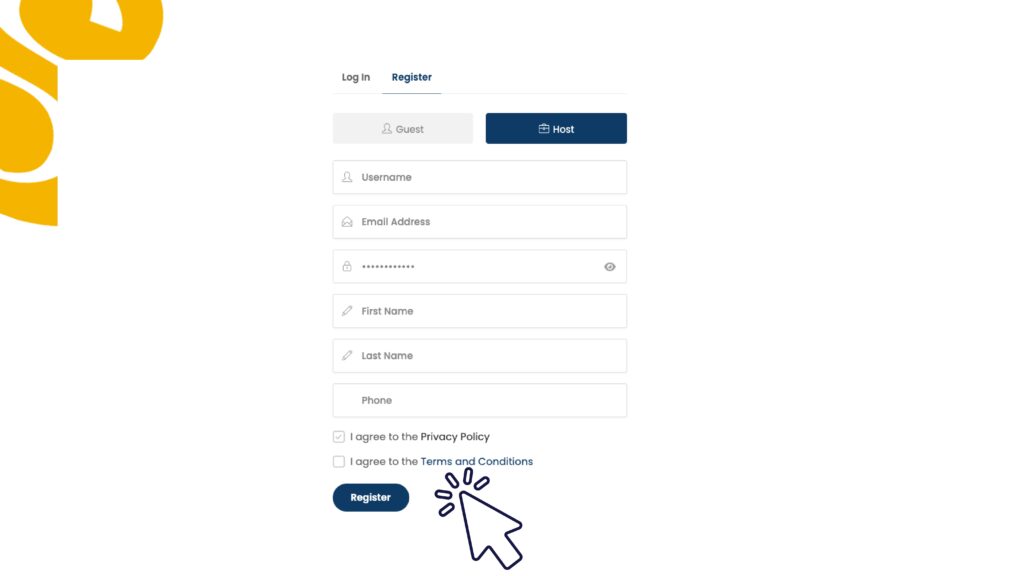
| Username | Choose a unique username for your account |
| Email Address | Enter a valid email – this is where you’ll receive booking notifications |
| Password | Create a secure password |
| First & Last Name | Your real name as a host |
| Phone Number | Guests may need to reach you |
Tick both the Privacy Policy and Terms and Conditions boxes, then click Register.
Section 3 – Log in to your Dashboard
After registering, you may be taken directly to your dashboard. If not, go to My Profile and log in with your username and password.
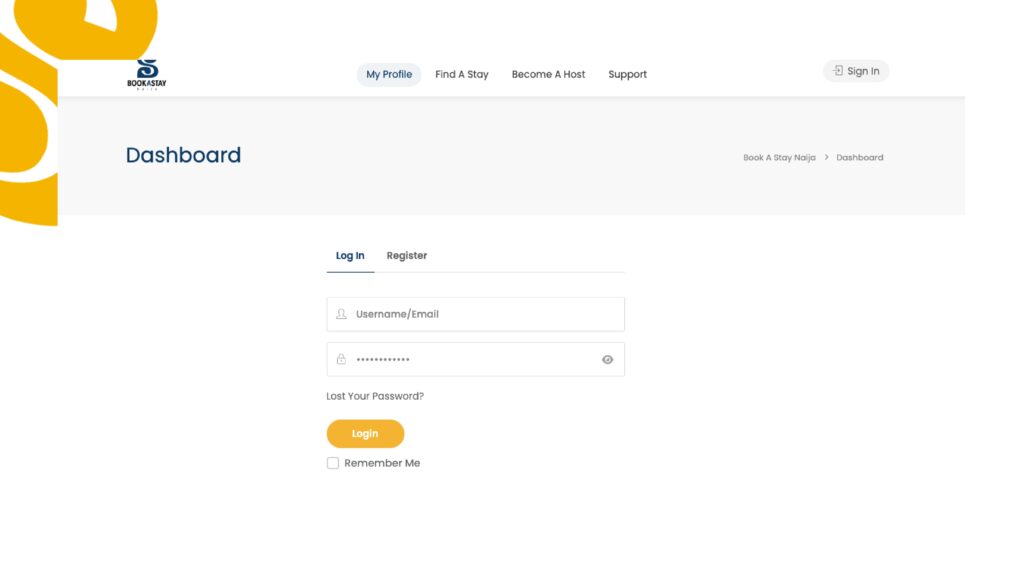
Tick Remember Me so you don’t have to log in every time.
2. Add Your Listing
Once you’re logged in, click Add Listing from the left sidebar of your dashboard.
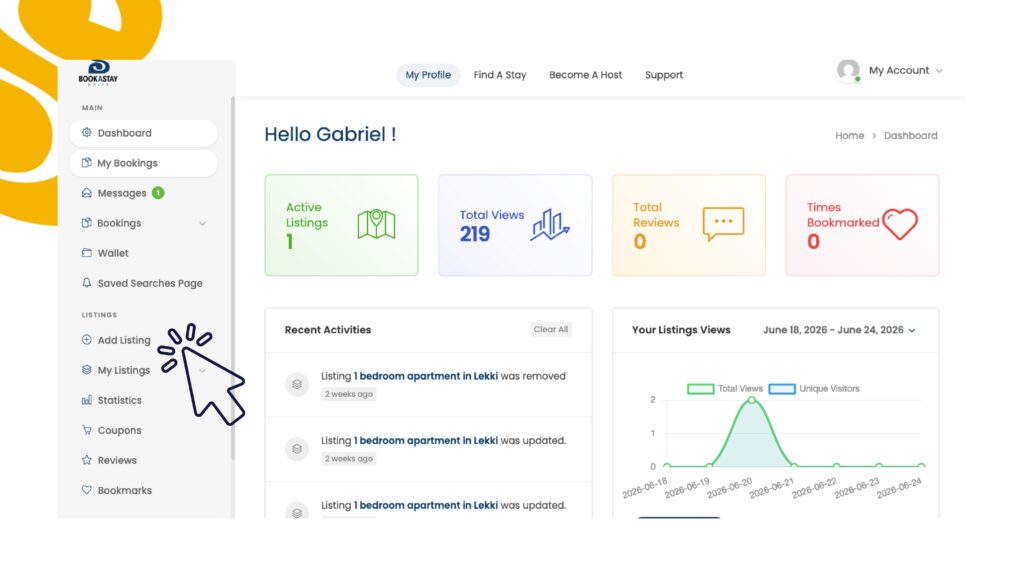
Section 1 – Basic Information
You’ll see a form with 9 sections – fill each one carefully to give your listing the best chance of getting booked.
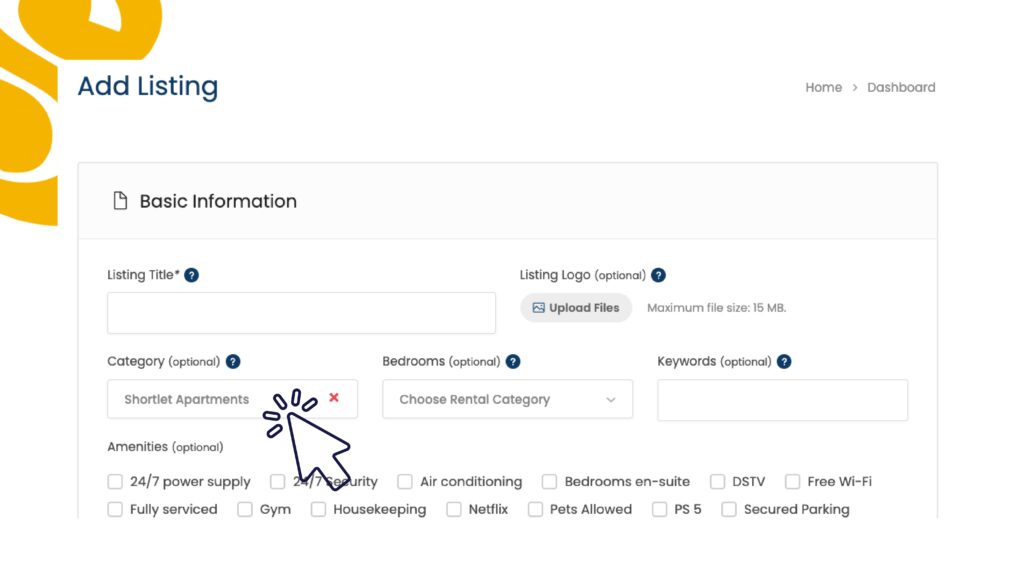
| Listing Title | Required | Give your apartment a clear, descriptive name. Example: 1 Bedroom Shortlet Apartment in Lekki Phase 1 |
| Listing Logo | Optional | Upload your logo if you have one. Skip this if you don’t. |
| Category | Required | Click the dropdown and select Shortlet Apartments. This is very important – selecting the wrong category means guests searching for shortlets won’t find you. |
| Bedrooms | Required | Choose the number of bedrooms – 1, 2, 3, or more. |
| Keywords | Optional | Add keywords that match your listing. You can use the same words as your listing title. Example: 1 bedroom shortlet Lekki |
| Amenities | Optional | Though optional, it’s advisable to inform guests about the amenities your apartment offers. Example: Wifi, Aircon, etc… |
Always select Shortlet Apartments as your category. This determines how guests find your listing on the platform.
Section 2 – Location
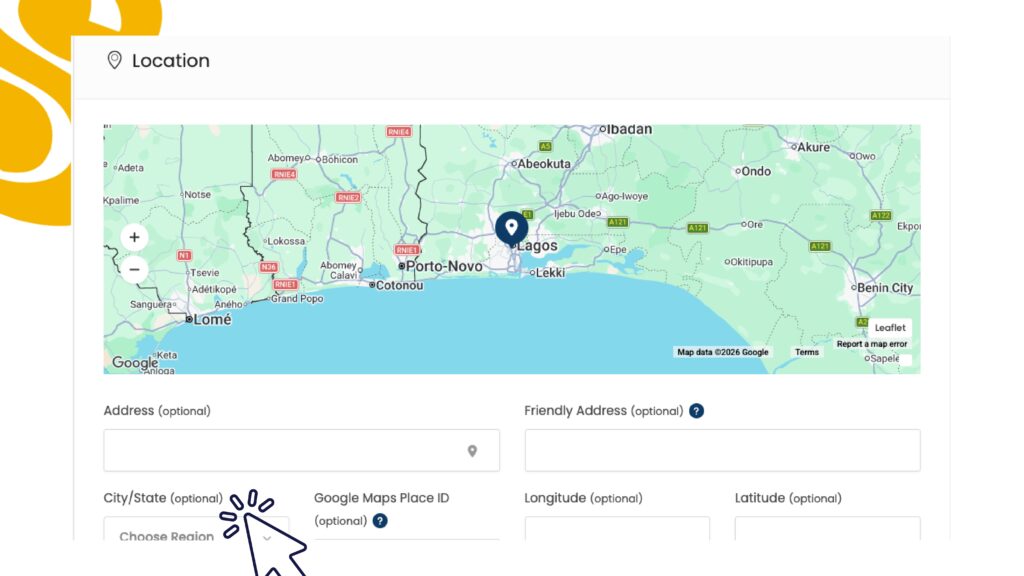
| Address | Required | Enter your full apartment address. Be as specific as possible – guests need to know where they’re going. |
| City/State | Required | Select your city and state from the dropdown. This is how your listing appears in location-based searches. |
| Map Pin | Required | Confirm the pin on the map matches your apartment’s exact location. Drag it if it’s off. |
| Friendly Address, Longitude, Latitude | Optional | These are optional – the map pin handles location accuracy automatically. |
Double-check the map pin – guests use the map to plan their journey. A wrong pin creates a bad first impression before they even arrive.
Section 3 – Details (Description)
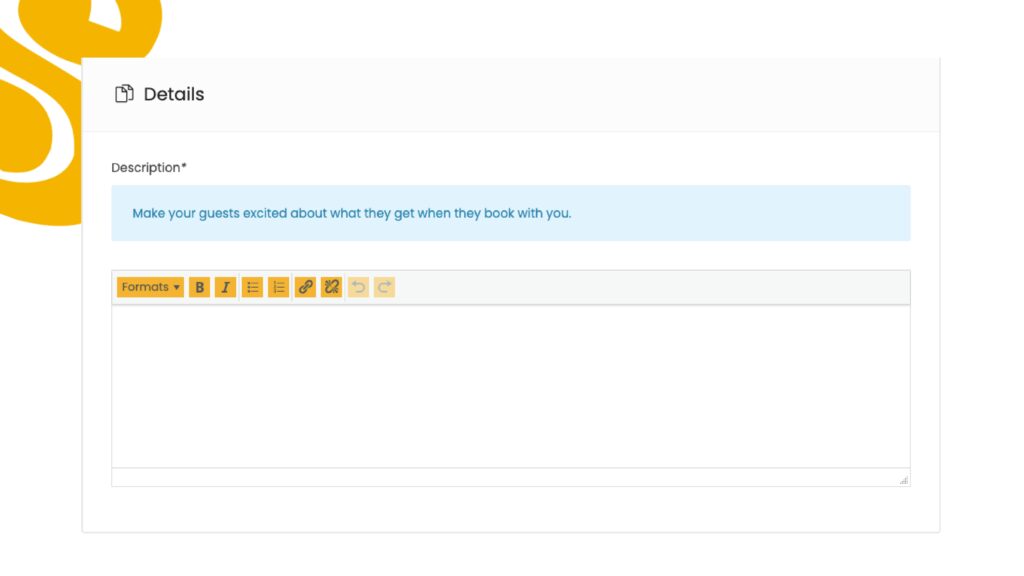
Write a description of your apartment. Think of this as your sales pitch to every guest who views your listing. Mention what makes your apartment stand out – the amenities, the neighbourhood, the experience. Make your guests excited about what they get when they book with you.
The better your description, the more likely you are to get booked.
Section 4 – Gallery
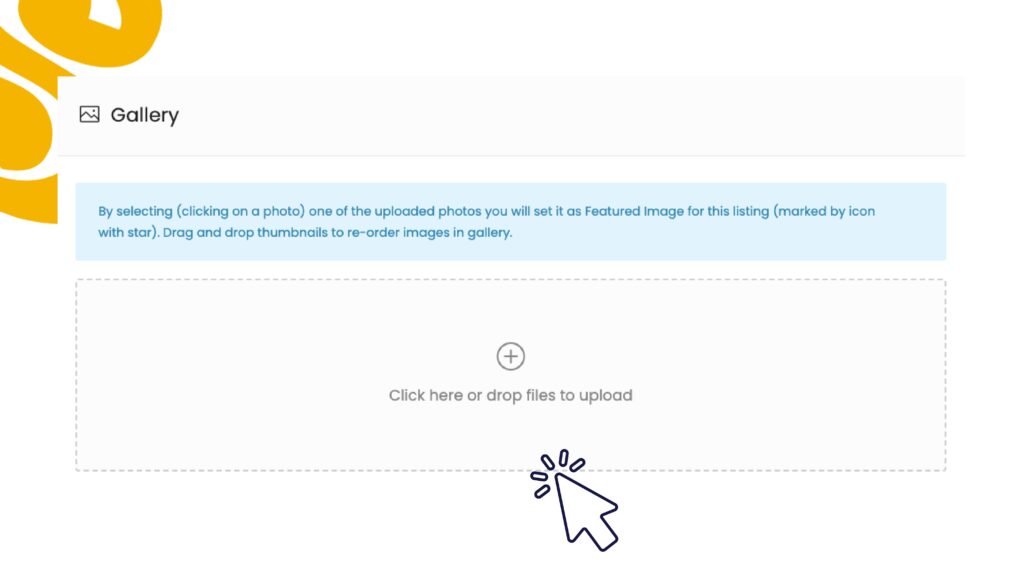
Upload clear, well-lit photos of your apartment. Include the living room, bedroom(s), bathroom, kitchen, and any standout areas. You can drag and drop photos to reorder them. The first photo you select becomes your featured image – make it count.
Photos are the first thing guests see. Poor or blurry photos will cost you bookings. Use natural light where possible and shoot from corner angles to show the full room.
Section 5 – Booking
Make sure the Booking toggle is switched ON. This enables the booking widget on your listing – without it, guests cannot book your apartment.
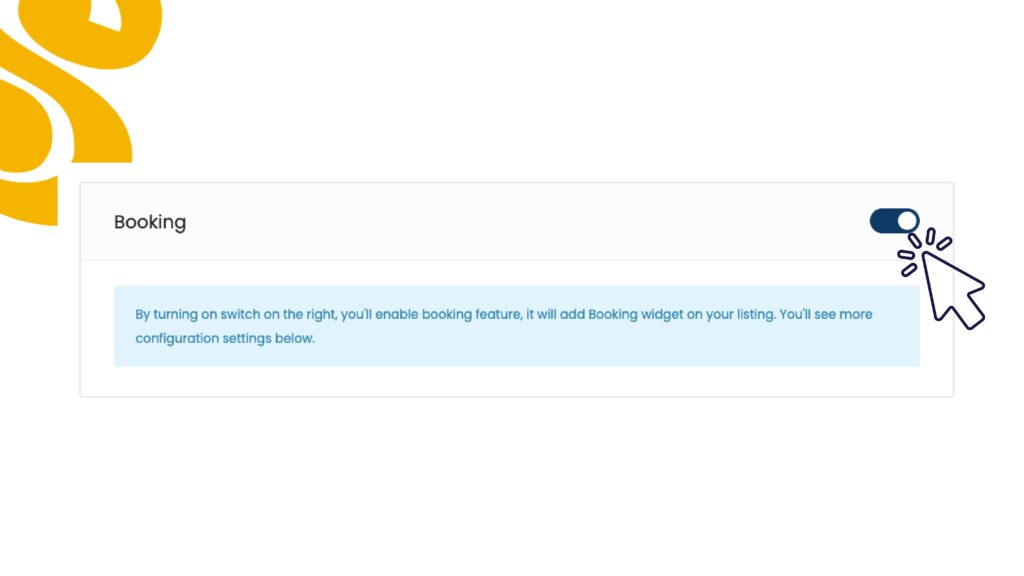
If this toggle is off, your listing will be visible but guests won’t be able to make a booking. Always confirm it’s enabled.
Section 6 – Booking Prices & Settings
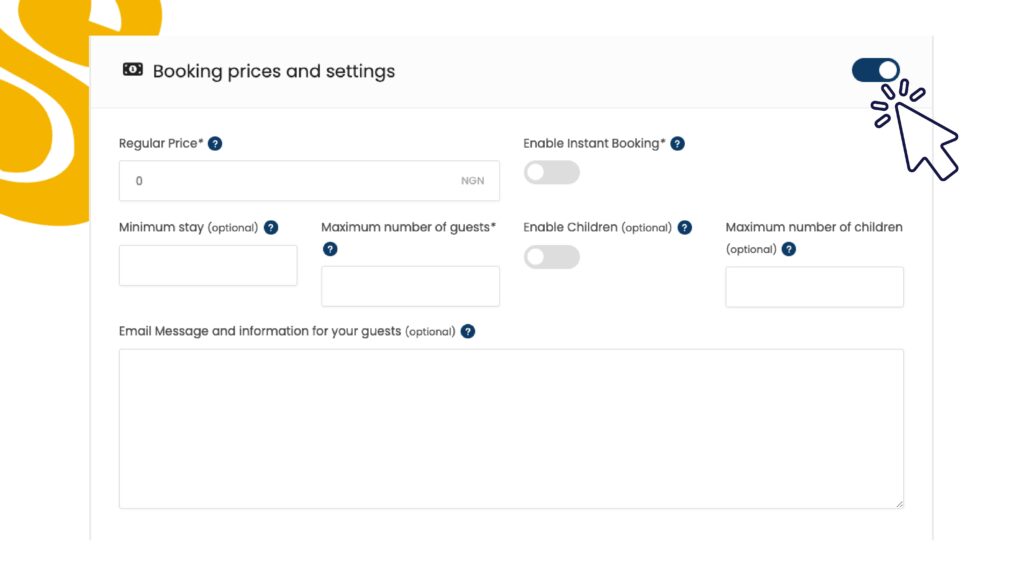
| Regular Price | Required | Enter your daily booking rate in Naira. This is what guests pay per night. |
| Enable Instant Booking | Required | Toggle this on if you want guests to book without waiting for your approval. Recommended for faster bookings. |
| Enable Children | Optional | Toggle on if you allow children. Leave off if your apartment is adults-only. |
| Minimum Stay | Optional | Leave blank unless you require a minimum number of nights (e.g. 2-night minimum). |
| Max Guests / Max Children | Optional | Leave blank unless you want to limit capacity. |
| Email Message to Guests | Optional | Add any important information you’d like to send guests automatically after booking – e.g. check-in instructions, house rules. |
Section 7 – Extra Bookable Services
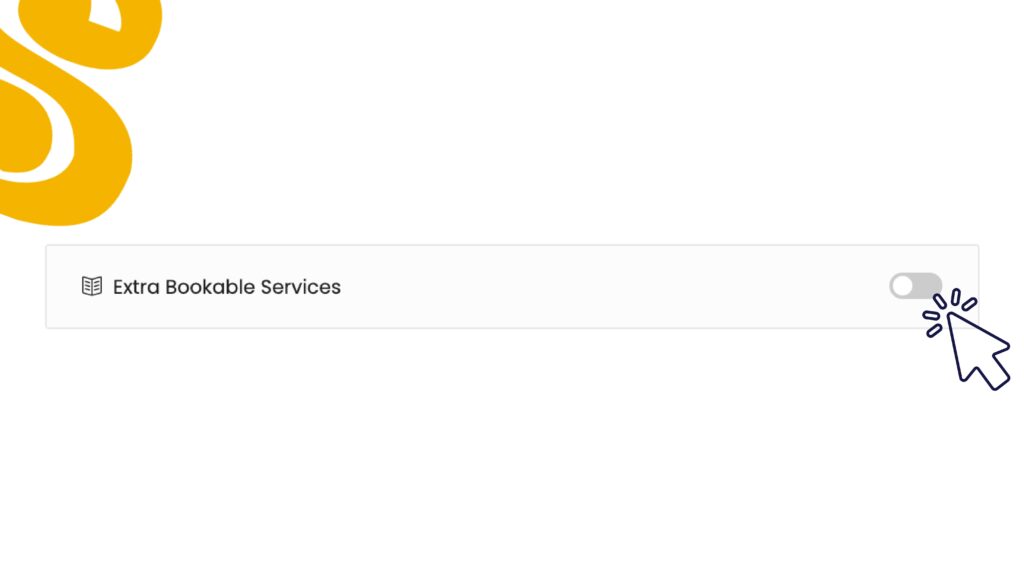
This section allows you to add paid extras that guests can select at the time of booking – things like cleaning fees or cooking services. We recommend you leave this section off and blank unless you specifically offer extra services for payment through the platform.
Do not add caution/security fees here. Caution fees should be collected directly from your guest on check-in.
Section 8 – Availability Calendar
By default, your apartment is available for all dates. You don’t need to touch this section unless you want to block out specific dates when your apartment is unavailable.
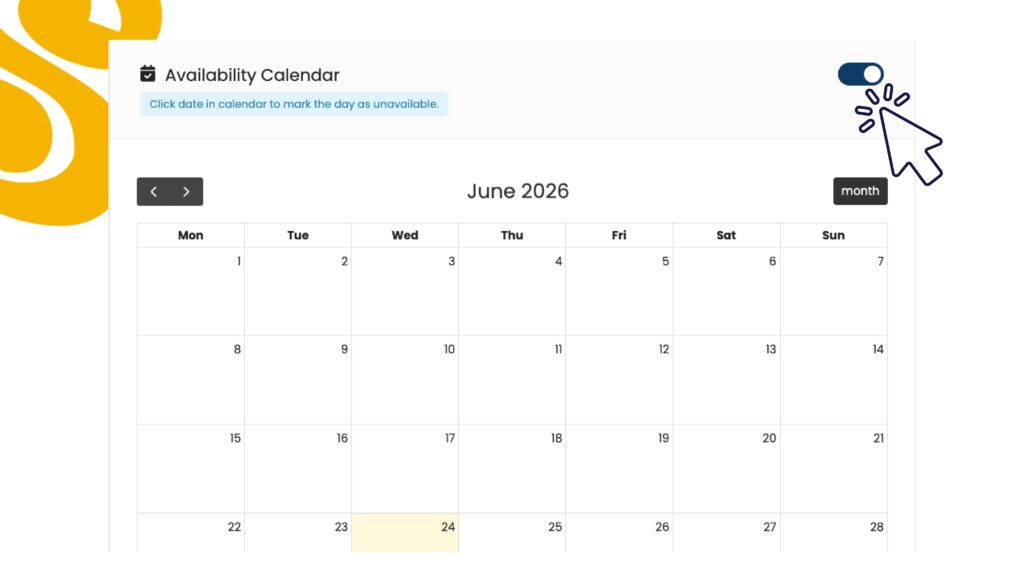
Use the calendar to block out dates if the apartment is already occupied, under maintenance, or unavailable for any other reason. Click a date to mark it as unavailable.
Section 9 – FAQ
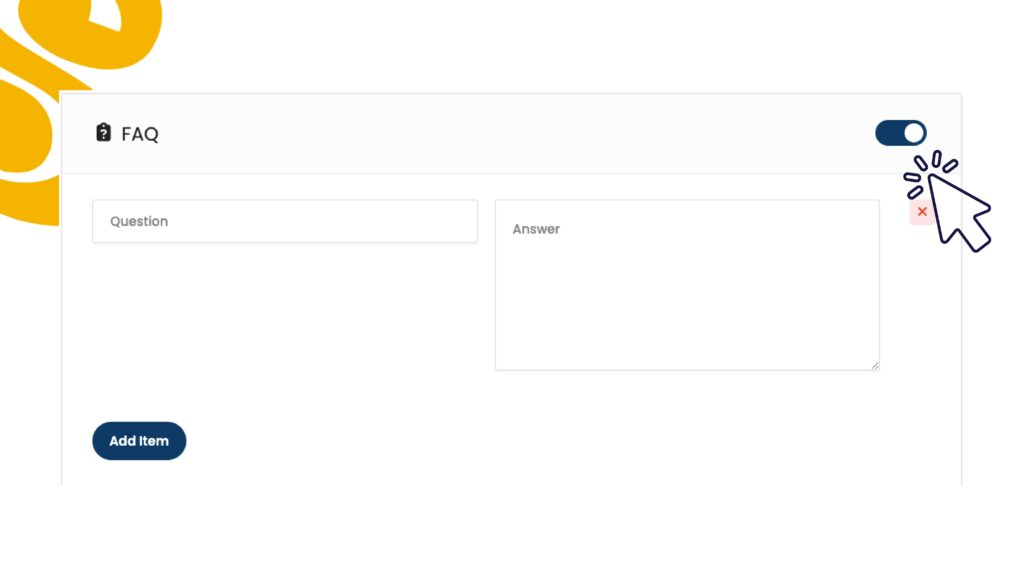
Add common questions your guests might have before booking – and answer them here. This helps guests make faster decisions and reduces back-and-forth messages. Examples to add:
- s there parking available?
- Is there 24-hour power supply?
- What is the check-in time?
- Are pets allowed?
Click Add Item for each question and answer. This section is optional but highly recommended.
Section 10 – Preview & Submit Listing
Once all sections are filled, scroll to the bottom and click the Preview button to submit your listing for review. Our team will review your listing and notify you once it’s approved and live.